NAME
Term::Fabulous::Manual::TableRows - Tables: sorting, filtering, grouping, trees, pages and selection
DESCRIPTION
This page is part of Term::Fabulous::Manual. Previous page: Term::Fabulous::Manual::Tables. Next page: Term::Fabulous::Manual::TableStyles.
This page explains which rows a Term::Fabulous::Widget::Table shows, in which order, and how the user moves through them and picks them: "SORTING", "FILTERING" (the filter row, filters from Perl and the search), "GROUPING", "TREES", "PAGES", and the cursor and the selection ("SELECTION AND CURSOR"). Each chapter starts with a short list of the parameters, methods, events and KDL properties it explains.
The table guide has two more pages: Term::Fabulous::Manual::Tables explains how a table works, rows, columns, display text and widgets in cells, and lists every table feature in its FEATURE INDEX; Term::Fabulous::Manual::TableStyles explains colors, lines, size, scrolling and printing. The exact contract of every parameter, method, key and event is on Term::Fabulous::Widget::Table, the filters are described on Term::Fabulous::Widget::Table::Filter, and complete programs for the features of this page are in Term::Fabulous::Cookbook::TableRows.
SORTING
Parameters:        sort
Column parameters: sortable, compare, type
Methods:           sort_by, clear_sort, sort_spec
Events:            SortChange
KDL:               sort "key" "desc"
Sorting by the user
A click on a column title sorts the table by that column. Clicking the same title again cycles through ascending, descending and unsorted. A small marker after the title shows the order: ▴ ascending, ▾ descending. With the keyboard, press Up on the first line of the page to reach the column titles, move to the column with Left and Right, and press Enter; Down or Escape returns to the rows (see "In the header" in Term::Fabulous::Widget::Table).
Every user change of the sort fires SortChange. The listeners on this page show what happened in $status, a Term::Fabulous::Widget::Text below the table (printing to STDOUT would write over the screen):
$table->on( SortChange => sub ($event) {
	$status->text( join ', ', map { "$_->[0] $_->[1]" } @{ $event->sort } );    # name asc, size desc
	return;
} );
Columns with sortable => 0 ignore clicks, Enter and Space on their title. Your program can still sort by them with sort_by.
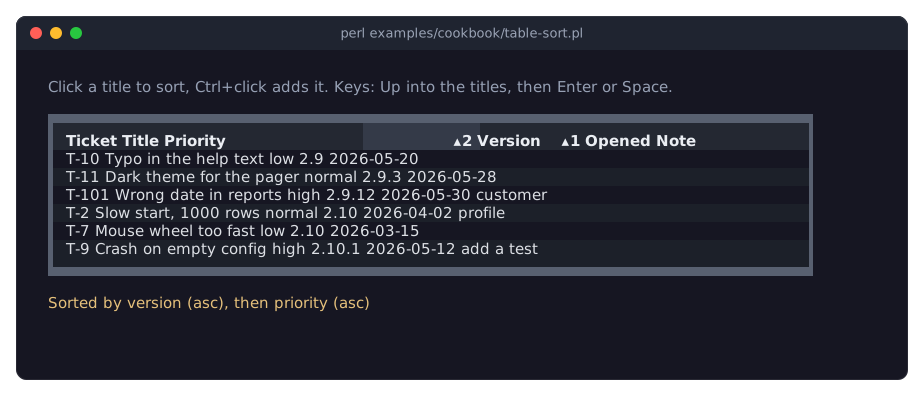
The picture shows a table sorted by two columns; the numbers after the markers are explained in "Sorting by several columns". The program is in the recipe Sort rows, also with your own comparison.
Sorting from Perl
sort => [ 'team', [ started => 'desc' ] ],    # parameter: team ascending, then newest first

$table->sort_by('name');                       # ascending
$table->sort_by( [ size => 'desc' ] );
$table->sort_by( 'team', [ salary => 'desc' ] );
$table->clear_sort;                            # the data order again
my $spec = $table->sort_spec;                  # [ [ 'team', 'asc' ], [ 'salary', 'desc' ] ]
Each entry of a sort is a column key (ascending) or an array reference [ $key, 'asc' ] or [ $key, 'desc' ]. sort_by replaces the whole sort; it dies for an unknown column, a direction that is not asc or desc, or a column named twice. It fires no event.
Unsorted rows show in data order: the order you gave them in, with add_rows and its index placing new ones.
Sorting by several columns
When a table is sorted by several columns, the first one decides; rows that are equal there are ordered by the second one, and so on. Rows equal in all of them keep their data order. The markers then carry the place of each column in the sort: ▴1, ▾2.
The user builds such a sort by holding Shift, Ctrl or Alt while clicking titles, or with Space instead of Enter in the header: the column is added at the end of the sort, or, when it is in the sort already, cycles from ascending to descending (keeping its place) and then leaves the sort. A click or Enter without these keys sorts by that one column again.
How values are compared
The compare parameter of a column says how its raw values are ordered. It defaults to the column's type:
'string'    text, without regard to case: apple, Banana, cherry (the default for string columns)
'natural'   text, with runs of digits compared as numbers: file2, file10, File11
'number'    numbers: 9, 10, 100 (the default for number columns)
'date'      points in time: dates, epoch seconds, objects with an epoch method
            (the default for date columns)

{ key => 'file', title => 'File', compare => 'natural' }
With these, blank values (undef or '') and values that cannot be read as the type (a word in a number column) sort after all others, in both directions. Sorting always uses the raw value, never the display text: a date column shown as 03 May 2024 sorts by date, not alphabetically.
Custom sort functions
compare can be your own function. It is called with the two raw values and copies of the two rows, and returns a negative number, 0 or a positive number, like Perl's <=> and cmp, for ascending order. The table reverses the result for descending order. It sees every value, also undef.
my %rank = ( high => 1, normal => 2, low => 3 );
{ key => 'priority', title => 'Priority',
  compare => sub ( $left, $right, $left_row, $right_row ) {
	( $rank{ $left // '' } // 9 ) <=> ( $rank{ $right // '' } // 9 )
  } }

# IPv4 addresses in numeric order
{ key => 'ip', title => 'Address',
  compare => sub ( $left, $right, @rows ) {
	pack( 'C4', split /\./, $left ) cmp pack( 'C4', split /\./, $right )
  } }

# Order by a different entry of the row than the one shown
{ key => 'month', title => 'Month', compare => sub ( $l, $r, $lrow, $rrow ) { $lrow->{month_number} <=> $rrow->{month_number} } }
The named comparisons compute one sort key per row and are fast; a function is called for every comparison, about n log n times for n rows. For thousands of rows, prefer a value code reference that computes a number or a string to sort by, with a named comparison.
Sorting groups and trees
In a grouped table, the groups are ordered by their value, ascending, with the group column's comparison; when the sort includes the group column, the groups follow its direction. As with rows, the groups of blank values come last in both directions (with a named comparison). Rows are sorted within their group. In a tree, child rows are sorted among their siblings, below their parent row.
FILTERING
Parameters:        filter_row
Column parameters: filterable, filter_on, type
Methods:           filter, remove_filter, filter_names, clear_filters,
                   search, filter_text, filter_error, filter_row,
                   filtered_row_ids
Events:            FilterChange
Module:            Term::Fabulous::Widget::Table::Filter
KDL:               filter_row, no_match_text
A filtered table shows only the rows that match all of its filters: the fields of the filter row, the filters your program sets, and the search. Filtering hides rows from the view; it does not remove them. Hidden rows keep their data and their selection.
The filter row
With filter_row => 1, the table shows a row of text fields right below the column titles, one per column (columns with filterable => 0 get an empty cell). An empty field shows …. What the user types filters the table as they type.
my $table = Term::Fabulous::Widget::Table->new( id => 'orders', filter_row => 1, columns => [...] );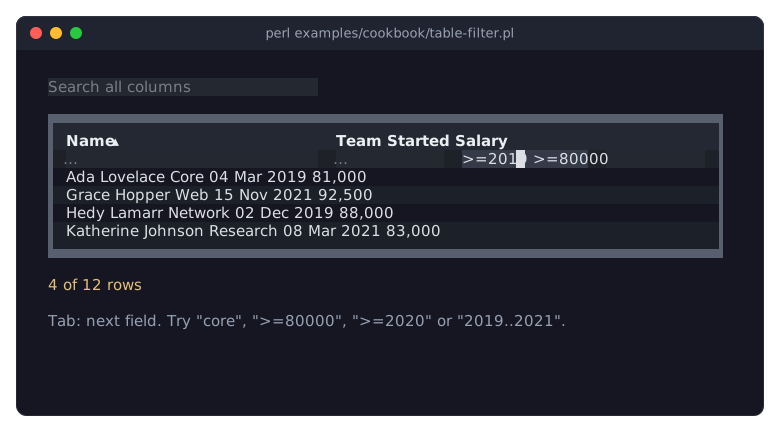
The picture shows a filter row with two expressions, >=2019 in a date column and >=80000 in a number column, and a search box above the table (see "Searching all columns"). The program is in the recipe Let the user filter rows.
The text in a field is a filter expression. Its notation depends on the column's type:
Text columns (type 'string')
  ann          the cell contains "ann" (upper and lower case do not matter)
  !ann         the cell does not contain "ann"
  =Ann Lee     the cell is "Ann Lee"
  !=Ann Lee    the cell is not "Ann Lee"
  ^An          the cell starts with "An"
  Lee$         the cell ends with "Lee"
  ^Ann Lee$    the cell is "Ann Lee"
  /^a.*e$/     the cell matches the regular expression (without regard to case)

Number columns (type 'number')
  42  =42      is 42
  !=42         is not 42
  >42  >=42    greater than 42 (or equal)
  <42  <=42    less than 42 (or equal)
  10..20       from 10 to 20, both included

Date columns (type 'date'), with dates in the forms 2024, 2024-05,
2024-05-03, 2024-05-03 14:30 and 2024-05-03 14:30:15
  2024-05-03         on that day
  >=2024-05          from May 2024 on
  <2024-05-03 14:30  before that minute
  2024-01..2024-03   from January to the end of March 2024

Every column
  =            the cell is empty
  !=           the cell is not empty
Spaces around an expression, and between an operator and its value (>= 42), do not matter, and an empty field filters nothing. A date names a span of time, as long as its last part: a day is a whole day, a month a whole month. So =2024-05-03 matches every time on that day, <=2024-05 everything up to the end of May, and >2024-05 everything from June on. Dates are in local time; a T may stand for the space before the time (2024-05-03T14:30), and a Z after the time reads it as UTC. The notation is the same as that of the parse function of Filter.
When a field holds an expression that the column's type cannot read (>abc in a number column), its text turns to the error_color, and the column is not filtered until the text is valid again. $table->filter_error($key) returns the message, and so does the error of the FilterChange event that every change of a field by the user fires:
$table->on( FilterChange => sub ($event) {
	$status->text( $event->error // sprintf( '%d of %d rows', scalar $table->filtered_row_ids, $table->row_count ) );
	return;
} );
Keys in a filter field: Tab and Shift+Tab move between the fields (and the rest of the program); Enter or Down go to the rows; Escape empties a field that has text (and fires FilterChange). In the Tab order, the table itself (its rows) comes before its filter fields, although the fields are drawn above the rows. Your program reads and sets the text of a field with filter_text; setting it fires no event and also works while the filter row is hidden:
$table->filter_text( size => '>=1000' );
say $table->filter_text('size');    # '>=1000'
$table->filter_text( size => '' );  # no filter on size
What a field compares, the raw value or the display text, is the column's filter_on (see "Raw value or display text").
Filters from Perl
Your program sets filters by name with filter. A filter is a Term::Fabulous::Widget::Table::Filter object or a code reference that gets a copy of the row's data and returns true for the rows to show. Setting a filter under a name that is in use replaces that filter; undef or remove_filter removes it.
use Term::Fabulous::Widget::Table::Filter;
my $F = 'Term::Fabulous::Widget::Table::Filter';

$table->filter( adults => $F->new( column => 'age', op => '>=', value => 18 ) );
$table->filter( mine   => sub ($row) { $row->{owner} eq 'ada' } );
$table->filter( adults => undef );          # removed again
$table->remove_filter('mine');
my @names = $table->filter_names;           # the names of your filters, in order
$table->clear_filters;                      # your filters, the search and the filter row
A condition compares one column with a value. The ops for text are contains, not_contains, equals, not_equals, starts_with, ends_with and matches (a regular expression); text comparisons ignore case unless case_sensitive => 1, except that a qr// pattern for matches keeps its own flags (qr/ann/i ignores case, qr/ann/ does not). The comparison ops compare as the column's type says:
# Numbers
$F->new( column => 'price', op => '<',       value => 10 )
$F->new( column => 'price', op => 'between', value => [ 10, 20 ] )    # both included
$F->new( column => 'qty',   op => 'in',      value => [ 1, 2, 3 ] )

# Dates: a date names a span of time (a day, a month, a minute)
$F->new( column => 'placed', op => '>=',      value => '2024-05' )                     # from May 2024 on
$F->new( column => 'placed', op => '=',       value => '2024-05-03' )                  # any time that day
$F->new( column => 'placed', op => 'between', value => [ '2024-01', '2024-03' ] )      # January to March
$F->new( column => 'placed', op => '<',       value => time - 7 * 86400 )              # older than a week

# Text
$F->new( column => 'name',  op => 'starts_with', value => 'An' )
$F->new( column => 'name',  op => 'matches',     value => qr/^a.*e$/i )
$F->new( column => 'state', op => 'in',          value => [ 'open', 'pending' ] )

# Blank cells (undef or '')
$F->new( column => 'closed', op => 'empty' )
Combine filters with all, any and not:
$table->filter( urgent => $F->any(
	$F->new( column => 'priority', op => '=', value => 'high' ),
	$F->all(
		$F->new( column => 'due', op => '<', value => '2024-06' ),
		$F->not( $F->new( column => 'done', op => '=', value => 1 ) ),
	),
) );
A test of your own on one column gets the cell and a copy of the row:
$table->filter( even => $F->new( column => 'id', test => sub ( $value, $row ) { $value % 2 == 0 } ) );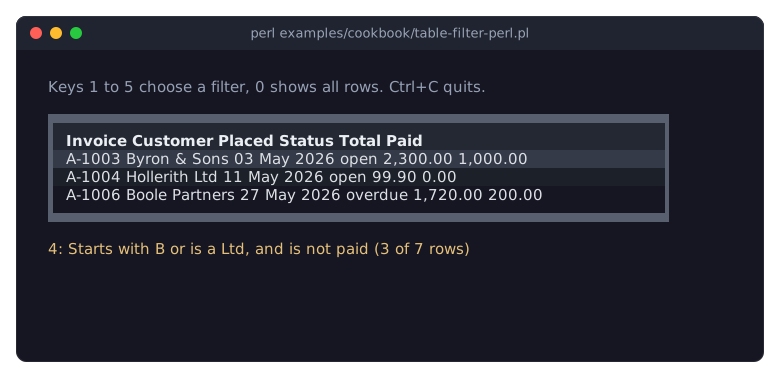
The picture shows a table filtered from Perl by a combination of conditions; the program, with five filters to switch between, is in the recipe Filter rows from Perl.
A filter is checked when you set it: a filter that names an unknown column, or compares with a value its column's type cannot read (op => '>', value => 'abc' on a number column), dies in filter, not later while the table is drawn. Filter names starting with column: belong to the filter row and die in filter; use filter_text for those. Term::Fabulous::Widget::Table::Filter describes every op and option.
Raw value or display text
A filter compares either the cell's raw value or its display text:
$F->new( column => 'size', op => '>=', value => 1048576 )                     # raw: 1 MiB or more
$F->new( column => 'size', op => 'contains', value => 'MiB', on => 'display' )    # what the user sees
Filters from Perl compare the raw value unless they say on => 'display'. The fields of the filter row compare what the column's filter_on says: by default the display text for string columns (users type what they see) and the raw value for number and date columns (users type numbers and dates, such as >=1048576 or 2024-05). Set filter_on => 'display' on a number column to let users type what they see instead; the cell is then still compared as a number, so this works for mutators that keep the text a number, such as sprintf_format('%.2f').
Searching all columns
$table->search('ada');      # rows where any visible cell contains "ada"
say $table->search;         # 'ada'
$table->search('');         # no search
search keeps the rows where the display text of at least one visible column contains the text, without regard to case. Each cell is searched on its own: a search never matches across two cells. Hidden columns are not searched. A typical search box is a Term::Fabulous::Widget::TextField above the table:
my $search = Term::Fabulous::Widget::TextField->new( placeholder => 'Search' );
$search->on( Change => sub ($event) { $table->search( $event->value ); return } );
Filters with groups and trees
In a grouped table, a group shows only its matching rows, its count counts only those, and groups without matching rows disappear.
In a tree, a matching child row is never cut off from its parents: the parent rows stay in the view even when they do not match, and the table expands them so that the match is visible. They stay expanded when the filter is removed.
What a filtered table shows
filtered_row_ids returns the ids of all rows that pass the filters, also those inside closed groups and closed tree rows. When no row passes, the table shows no_match_text (default 'No rows match'); when it has no rows at all, empty_text (default 'No rows'). select_all and Ctrl+A select the rows that pass the filters.
GROUPING
Parameters: group_by, group_label, group_style, group_text_color,
            group_background_color
Methods:    group_by, ungroup, is_group_expanded, expand_group,
            collapse_group, expand_all_groups, collapse_all_groups,
            cursor_group
Events:     Expand, Collapse (with a group_path)
KDL:        group_by "key" ...
group_by puts the rows into groups by the value of a column. Each group starts with a group header, a line across all columns that shows the group's value and how many rows it has, and that the user can close to hide the group's rows.
my $table = Term::Fabulous::Widget::Table->new(
	id       => 'staff',
	columns  => [...],
	rows     => \@staff,
	group_by => 'team',              # or [ 'team', 'city' ] for groups within groups
);

$table->group_by( 'team', 'city' );  # change it later
my @keys = $table->group_by;         # ( 'team', 'city' )
$table->ungroup;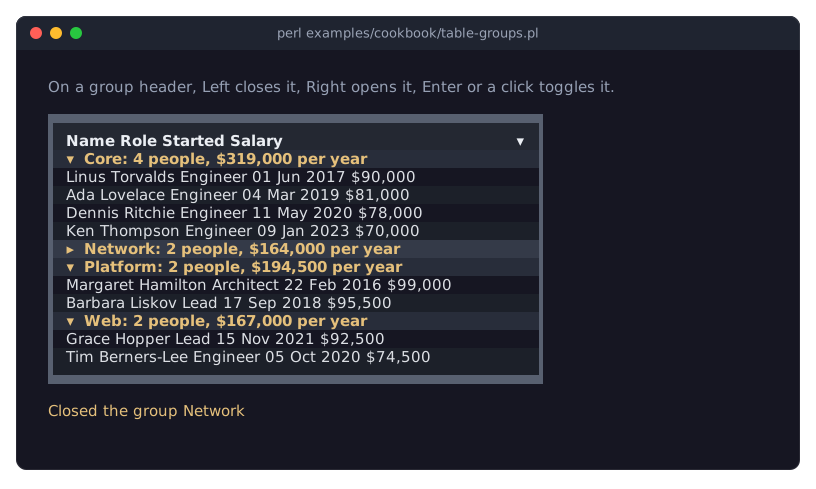
The program behind the picture is in the recipe Group rows by a column; it makes the labels with group_label (see "Group headers").
Rows are grouped by the column's raw value; the header shows its display text. Rows with a blank value form a group of their own, shown as
(empty).undefand''are different values: they form two groups, both labeled(empty). To merge them, give the column avaluecode such assub ($row) { $row->{city} // '' }.With several columns, every group is divided by the next column, and the headers of each level are indented by two more terminal cells.
The groups are ordered by their value with the comparison of the group column, and rows are sorted within their group (see "Sorting groups and trees").
The group column stays a normal column; hide it with
hide_columnsif the group header says enough.In a tree (see "TREES"), only top-level rows are grouped; child rows stay below their parent row.
Group headers are lines: they count for the pages (see "PAGES"), and the cursor can stand on them.
Group headers
By default a group header shows Title: value (count) in bold, for example Team: Core (12), in the group_text_color on the group_background_color. The count is the number of rows in the group that pass the filters, child rows in a tree included. group_label replaces the text: a code reference that gets a hash reference about the group and returns a string or a widget:
group_label => sub ($group) {
	my $total = 0;
	$total += $group->{table}->value( $_, 'salary' ) // 0 foreach @{ $group->{ids} };
	return sprintf '%s - %d people, %s per year', $group->{display}, $group->{count}, $total;
},
The hash has these keys:
column    the Term::Fabulous::Widget::Table::Column object of the group column
value     the raw value the group's rows share
display   its display text
count     the number of rows in the group (child rows included)
path      the group path: the values of this group and the groups around it, outermost first
depth     the level of the group, 0 for the outermost
ids       the ids of the group's top-level rows
table     the table
The label is made again when the group's display text or count changes, and when you set group_label again. A returned widget is used as it is; give it its own colors. A group header never makes the table wider: a label longer than the table is wide wraps onto more lines. group_style is a style hash for all group headers: their looks and lines (see "Style keys" in Term::Fabulous::Manual::TableStyles):
group_style => { background_color => '#2c313c', text_color => '#e5c07b', border_bottom => 'Solid' },Opening and closing groups
The user opens and closes a group by clicking its header, or with the keyboard on its header line: Enter or Space toggle it, Right or + open it, Left or - close it. Right on an open group header moves the cursor to the first line inside the group, Left on a closed group header moves it to the header of the group around it (with several group columns), and Left on a top-level row moves it to the header of the row's group; these moves fire only CursorMove. The marker in front of the label shows the state: ▾ open, ▸ closed. Opening and closing fire Expand or Collapse with the group's path:
$table->on( Collapse => sub ($event) {
	my $path = $event->group_path // return;    # undef: a tree row was closed
	$status->text( 'closed ' . join ' / ', @$path );
	return;
} );
From Perl, groups are named by their path (raw values, outermost first):
$table->collapse_group('Sales');            # the group 'Sales'
$table->expand_group( 'Sales', 'Berlin' );  # 'Berlin' within 'Sales'
say 'open' if $table->is_group_expanded('Sales');
$table->collapse_all_groups;
$table->expand_all_groups;
These fire no events. The table remembers which groups are closed by their path, also while a filter hides a group or the grouping is off, so a group comes back closed. collapse_all_groups closes the groups there are right now (with the current filters); a group that appears later, through new rows or a changed filter, starts open. is_group_expanded returns 1 for a path that names no group.
When the cursor stands on a group header, cursor returns undef and cursor_group returns the group's path.
TREES
Parameters: children_key, tree_column, tree_expanded
Methods:    expand, collapse, expand_all, collapse_all, is_expanded,
            parent_of, children_of, add_row (parent), children_key,
            tree_column, tree_expanded
Events:     Expand, Collapse (with a row_id)
KDL:        children_key, tree_column, tree_expanded
A tree table shows nested data: rows with child rows, which have child rows of their own, and so on. Name the row entry that holds the child rows with children_key:
my $table = Term::Fabulous::Widget::Table->new(
	id           => 'files',
	row_id       => 'path',
	children_key => 'children',
	columns      => [
		{ key => 'name', title => 'Name' },
		{ key => 'size', title => 'Size', type => 'number', mutator => bytes() },
	],
	rows => [
		{ path => '/src', name => 'src', size => 18400, children => [
			{ path => '/src/main.c', name => 'main.c', size => 12000 },
			{ path => '/src/lib', name => 'lib', size => 6400, children => [
				{ path => '/src/lib/util.c', name => 'util.c', size => 6400 },
			] },
		] },
		{ path => '/README', name => 'README', size => 900 },
	],
);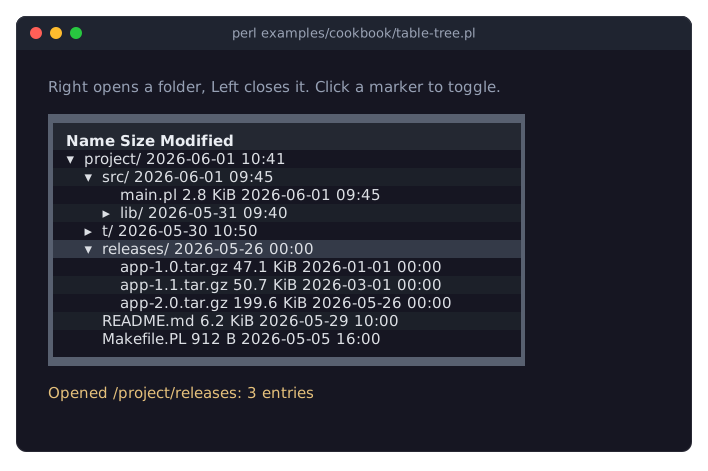
The program behind the picture is in the recipe Show nested data as a tree.
Every row at every level is a row of the table, with its own id; ids must be unique in the whole tree.
row_idapplies to all levels.The child rows are taken out of the row data:
$table->row($id)has nochildrenentry, while$table->rowsreturns the whole tree again with the child rows nested underchildren_key. Rows without the key, or with an empty array reference, have no children.The tree column shows the tree: it indents each row by two columns per level and shows a marker in front of rows with children that pass the filters:
▸closed,▾open. It is the column named bytree_column, or the first visible column whentree_columnis not set (or names a hidden column).Rows with children start closed, unless
tree_expanded => 1: then rows with children start open. This applies to rows given tonewandrowsand to rows added later.Rows are sorted among their siblings, below their parent. Filters keep the parents of matching rows (see "Filters with groups and trees"). Grouping groups the top-level rows only.
children_keycan be changed only while the table has no rows.
Opening and closing tree rows
The user opens and closes a row by clicking its marker, or with the cursor on the row: Right or + open it, Left or - close it. Right on an open row moves to its first child row; Left on a row that is closed or has no children moves to its parent row. Opening and closing fire Expand and Collapse with the row's id:
$table->on( Expand => sub ($event) {
	my $id = $event->row_id // return;    # undef: a group was opened
	$status->text("opened $id");
	return;
} );
From Perl:
$table->expand('/src');                 # one or more ids
$table->collapse( '/src', '/src/lib' );
$table->expand_all;                     # every row that has children
$table->collapse_all;
say 'open' if $table->is_expanded('/src');
These fire no events. A closed row keeps the state of its child rows: opening it again shows them as they were.
Changing a tree
$table->add_row( { path => '/src/new.c', name => 'new.c', size => 10 }, parent => '/src' );
$table->add_rows( \@files, parent => '/src/lib', index => 0 );    # first children
$table->remove_row('/src/lib');                                    # with all its children
my $parent = $table->parent_of('/src/main.c');                     # '/src'; undef at the top
my @kids   = $table->children_of('/src');                          # child ids, in data order
update_row and replace_row change a row's own data only; giving them the children_key dies (for update_row) or is ignored (for replace_row). Add and remove child rows instead.
Loading child rows when a row opens
A row needs at least one child row to show a marker and be opened. To load children only when the user opens a row, give it a placeholder child and replace it on Expand:
sub folder ($path) {
	return { path => $path, name => $path, children => [ { path => "$path/...", name => 'loading' } ] };
}

$table->on( Expand => sub ($event) {
	my $id = $event->row_id // return;
	return unless $table->has_row("$id/...");
	$table->remove_row("$id/...");
	$table->add_rows( [ map { folder($_) } list_folders($id) ], parent => $id );
	return;
} );
PAGES
Parameters: page_size, page_sizes, pager
Methods:    page, page_count, page_size, next_page, previous_page,
            page_sizes, pager, page_row_ids
Events:     PageChange
KDL:        page_size, page_sizes, pager
With a page_size, the table shows its lines one page at a time, and a pager below the table:
« ‹ Page 2 of 7 › » Rows per page 25 ▾ 26–50 of 160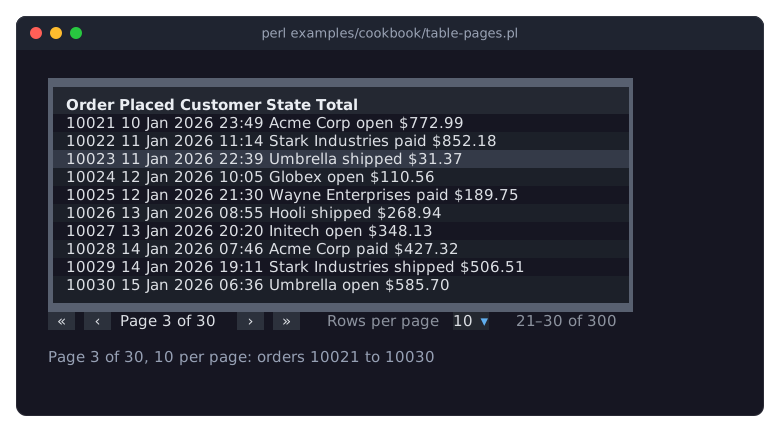
The program behind the picture is in the recipe Split many rows into pages.
my $table = Term::Fabulous::Widget::Table->new(
	id         => 'log',
	page_size  => 25,                     # 0 (the default): no pages
	page_sizes => [ 25, 50, 100, 500 ],   # the choices in the pager (default 10, 25, 50, 100)
	columns    => [...],
);
Pages count lines: data rows, the child rows of open tree rows and group headers. A closed group is one line.
The pager shows buttons for the first, previous, next and last page (disabled where they lead nowhere), the page number, a list of page sizes, and which lines are shown out of how many. Its buttons take no focus (the keys below do the same); the list of page sizes does. When the table is narrow, the parts of the pager wrap onto more lines.
The pager shows while
page_sizeis above 0.pager => 0hides it even then (turn the pages from your program);pager => 1shows it even without pages, as a count of the lines and a way for the user to choose a page size.A
page_sizethat is not inpage_sizesis added to the pager's list of sizes (page_sizesitself does not change).
The user turns pages with the pager, with Ctrl+PageDown and Ctrl+PageUp, and by moving the cursor beyond the page with Ctrl+Home and Ctrl+End. PageUp, PageDown, Home and End move only within the page. These page turns and every page size change by the user fire PageChange. A page turn puts the cursor on the first line of the new page, so it fires CursorMove first (and, with selection => 'single', SelectionChange after it). When the page changes because the cursor's line moved to another page (after a sort, a filter or a closed group), no PageChange fires.
$table->on( PageChange => sub ($event) {
	$status->text( sprintf 'page %d of %d, %d per page', $event->page, $table->page_count, $event->page_size );
	return;
} );
From Perl:
$table->page(3);                 # turn to page 3; dies below 1, stops at the last page
say $table->page, ' / ', $table->page_count;
$table->next_page;               # stops at the last page
$table->previous_page;           # stops at the first page
$table->page_size(50);           # 0 ends the pages
my @ids = $table->page_row_ids;  # the data rows of the shown page
These fire no events. Turning a page puts the cursor on the first line of the new page. In the other direction, the page follows the cursor: after a change of the sort, the filters, the page size or the rows, the table shows the page with the cursor's line.
SELECTION AND CURSOR
Parameters: selection, selection_column, cursor_color, selected_color,
            double_click_seconds
Methods:    selection, selection_column, selected_ids, selected_rows,
            is_selected, set_selection, select, deselect, select_all,
            clear_selection, cursor, cursor_group, scroll_to_row
Events:     CursorMove, SelectionChange, RowActivate
KDL:        selection, selection_column
The cursor and the selection are two different things. The cursor is one line, the place the keyboard works on, like the cursor in a text. The selection is a set of rows that the user marked, for example to delete them all.
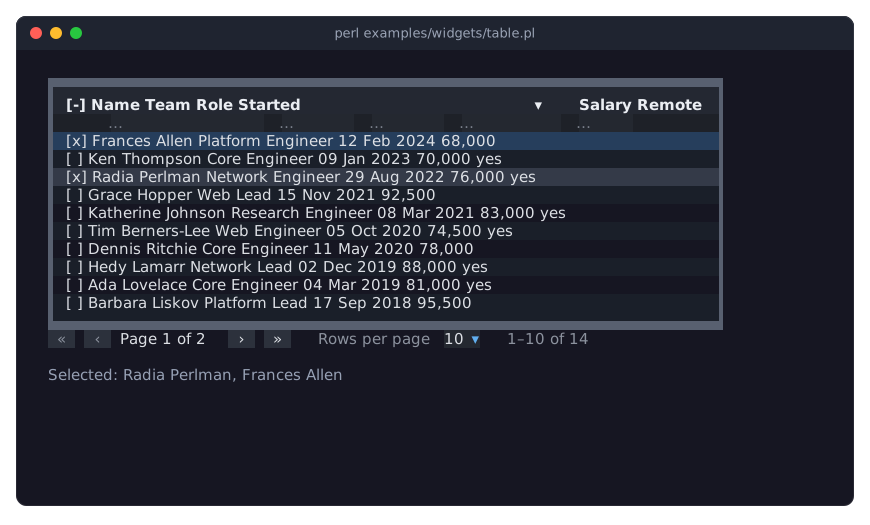
In the picture, the cursor is on the third row (Radia Perlman), and two rows are selected in a table with selection => 'multiple': they have a check mark in the selection column and the selected_color. The header of the selection column shows [-]: some, not all, rows are selected. The program is examples/widgets/table.pl, shown on Term::Fabulous::Widget::Table.
The cursor
When the view has lines, the cursor is always on one line of the current page; it starts on the first line. Only an empty view has no cursor.
It is drawn in the
cursor_colorwhile the table, or a widget in one of its cells, has the keyboard focus, and the keyboard is not in the column titles (see "In the header" in Term::Fabulous::Widget::Table). Otherwise it is not shown, but it is still there. Give the table the focus withTab, a click, or$ui->interaction->set_focused_widget($table).The user moves it with the keys (see "KEYS" in Term::Fabulous::Widget::Table) and clicks, which fires CursorMove. The event's
row_idis the id of the row it is on now, orundefon a group header; then itsgroup_pathis the group's path.When its line goes away, the cursor moves to the line that stands for it, and that fires no event. When the row is still there but not shown (filtered out, or inside a group or tree row that closed), that is the nearest parent row that is shown, else the header of its group. When the row was removed, or has no such line, it is the line that is now at the cursor's place in the view: the next line, or the last line when the cursor was on the last one.
my $id   = $table->cursor;         # the row id, or undef on a group header or an empty view
my $path = $table->cursor_group;   # the group path while on a group header, else undef
$table->cursor(42);                # put the cursor on row 42, show its page, scroll to it
$table->scroll_to_row(42);         # the same
cursor($id) dies when the row is not shown: when it is filtered out or inside a closed group or tree row (open it first). It fires no event and does not change the selection, also not with selection => 'single'.
Selection
selection chooses whether, and how many, rows can be selected:
selection => 'none'(the default)-
Nothing can be selected.
set_selectionandselectwith ids, andselect_all, die;deselectandclear_selectiondo nothing. selection => 'single'-
At most one row is selected, and it follows the cursor: when the user moves the cursor onto a data row, with a key, a click or a page turn, that row is selected.
Spaceselects the cursor's row. On a group header, the selection stays as it is. selection => 'multiple'-
Any number of rows. Moving the cursor does not change the selection. The user changes it with:
Space                     select or deselect the cursor's row
Shift+Up, Shift+Down,     select the range from its start to the new cursor line
Shift+PageUp/PageDown,
Shift+Home, Shift+End
Shift+click               select the range from its start to this row
Ctrl+A                    select every row that passes the filters; when all of
                          them are selected already, deselect them
click                     select only this row
Ctrl+click, Alt+click     select or deselect this row, keep the others
click on [ ]              select or deselect this row, keep the others
click on the [ ] title    the same as Ctrl+A
Rows hidden by the filters are never deselected by
Ctrl+Aor the title of the selection column; only rows that pass the filters are. In a tree, "the rows that pass the filters" include the parent rows that are shown because a child row matches (see "Filters with groups and trees").A range starts at the line the cursor was on before the first
Shiftkey orShift+click, and the range replaces the selection. Group headers inside a range are skipped.
With selection => 'multiple', the table shows a selection column before the first column: [x] for selected rows, [ ] for the others. Its header shows [x] when all rows that pass the filters are selected, [-] when some are, [ ] when none are. selection_column => 0 hides it; selection_column => 1 shows it in single mode, too. Selected rows are drawn in the selected_color; the cursor's line is drawn in the cursor_color, also when it is selected.
Every change of the selection by the user fires SelectionChange, after the CursorMove of the same key or click:
$table->on( SelectionChange => sub ($event) {
	my $selected = $event->selected_ids;    # all selected ids, in data order
	my $added    = $event->added_ids;       # newly selected by this change, in data order
	my $removed  = $event->removed_ids;     # no longer selected
	$status->text( @$selected . ' selected' );
	return;
} );
From Perl (none of these fire an event):
my @ids  = $table->selected_ids;      # in data order
my @rows = $table->selected_rows;     # copies of their data, in the same order
say 'yes' if $table->is_selected(7);
$table->set_selection( 1, 2, 3 );     # exactly these
$table->select(4);                    # add (single mode: replace)
$table->deselect(2);
$table->select_all;                   # every row that passes the filters (multiple only)
$table->clear_selection;
$table->selection('single');          # change the mode
The selection is independent of the view: rows that are filtered out, on another page or inside a closed group stay selected. Removed rows leave it. When rows replaces all rows, rows whose id is still there stay selected (see "Row ids" in Term::Fabulous::Manual::Tables). Changing the mode keeps what the new mode allows: nothing for none, the first selected row (in data order) for single.
Activating a row
Enter on a data row and a double click on it fire RowActivate, the table's "open this" event. It carries the row's id and a copy of its data:
$table->on( RowActivate => sub ($event) {
	show_details( $event->row_id, $event->row );
	return;
} );
Enter on a group header opens or closes the group instead. Two clicks on the same line count as a double click when they are at most double_click_seconds apart (default 0.4). Enter in a widget inside a cell, and double clicks on input widgets in cells, do not activate the row.
SEE ALSO
This page is part of Term::Fabulous::Manual. Previous page: Term::Fabulous::Manual::Tables. Next page: Term::Fabulous::Manual::TableStyles.
Term::Fabulous::Widget::Table, Term::Fabulous::Widget::Table::Filter, Term::Fabulous::Event::SortChange, Term::Fabulous::Event::FilterChange, Term::Fabulous::Event::Expand, Term::Fabulous::Event::Collapse, Term::Fabulous::Event::PageChange, Term::Fabulous::Event::CursorMove, Term::Fabulous::Event::SelectionChange, Term::Fabulous::Event::RowActivate, Term::Fabulous::Cookbook::TableRows.